
Backup and Sync to Google Cloud Storage
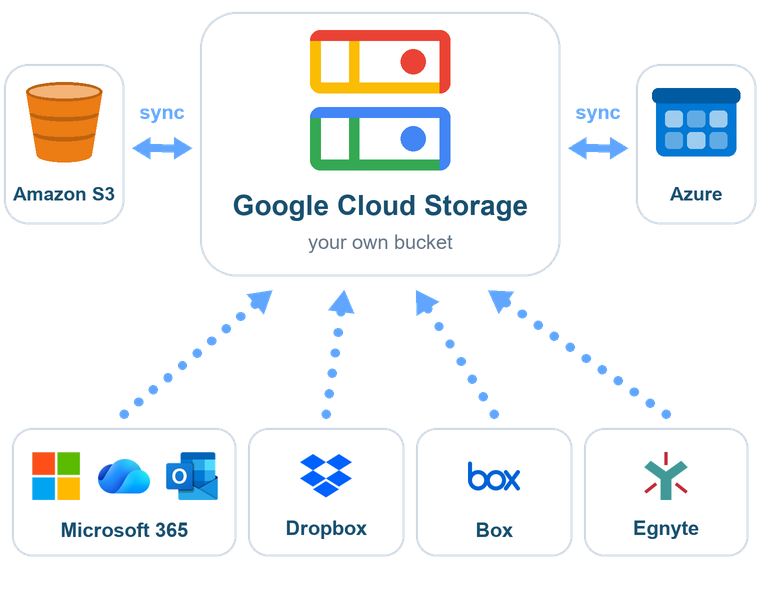
A second copy of your cloud, in your own Google Cloud bucket.cloudHQ gets one role on one bucket. No keys change hands.It also syncs Amazon S3 and Azure with your bucket.

No Keys to Hand Over
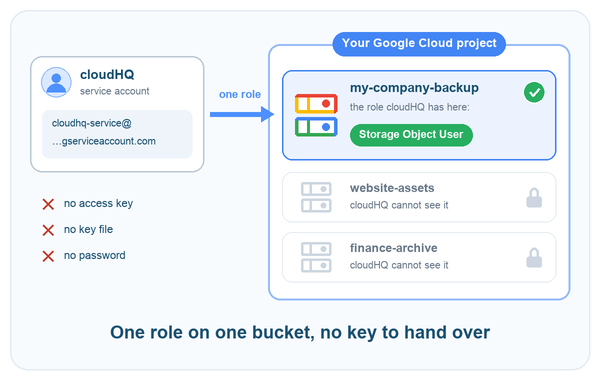
You grant cloudHQ one role on one bucket in Google Cloud. There is no access key to paste and no password to store. Remove the role and the access is gone.
How the access works »

Your Bucket, Your Rules
Backups go into a bucket of your own Google Cloud project. The location, the storage class and the lifecycle rules stay yours to set.
What ends up in the bucket »

A Different Provider on Purpose
Microsoft 365, Dropbox, Box, Egnyte and Amazon S3 are on one side. Google Cloud is on the other. An outage or a locked account cannot reach both copies.
What you can back up »
Your cloud apps, backed up to a bucket you own
cloudHQ never holds a key to your Google Cloud
With most backup tools, you hand over an access key or a key file. That key is yours to store and rotate, and you can only hope it never leaks. cloudHQ does not need one.
In the Google Cloud console, open your bucket and give the cloudHQ service account a single role, Storage Object User. That role is the only thing cloudHQ gets:
- Inside that one bucket it can list objects, read them, write them and delete them.
- Your other buckets stay hidden from it. So does everything else in your project.
- It cannot change the bucket's settings, and it cannot change who has access to the bucket.
When you want the access to end, remove the role in the console. Access stops right then, and no key is left behind for you to revoke.
Set up in three steps
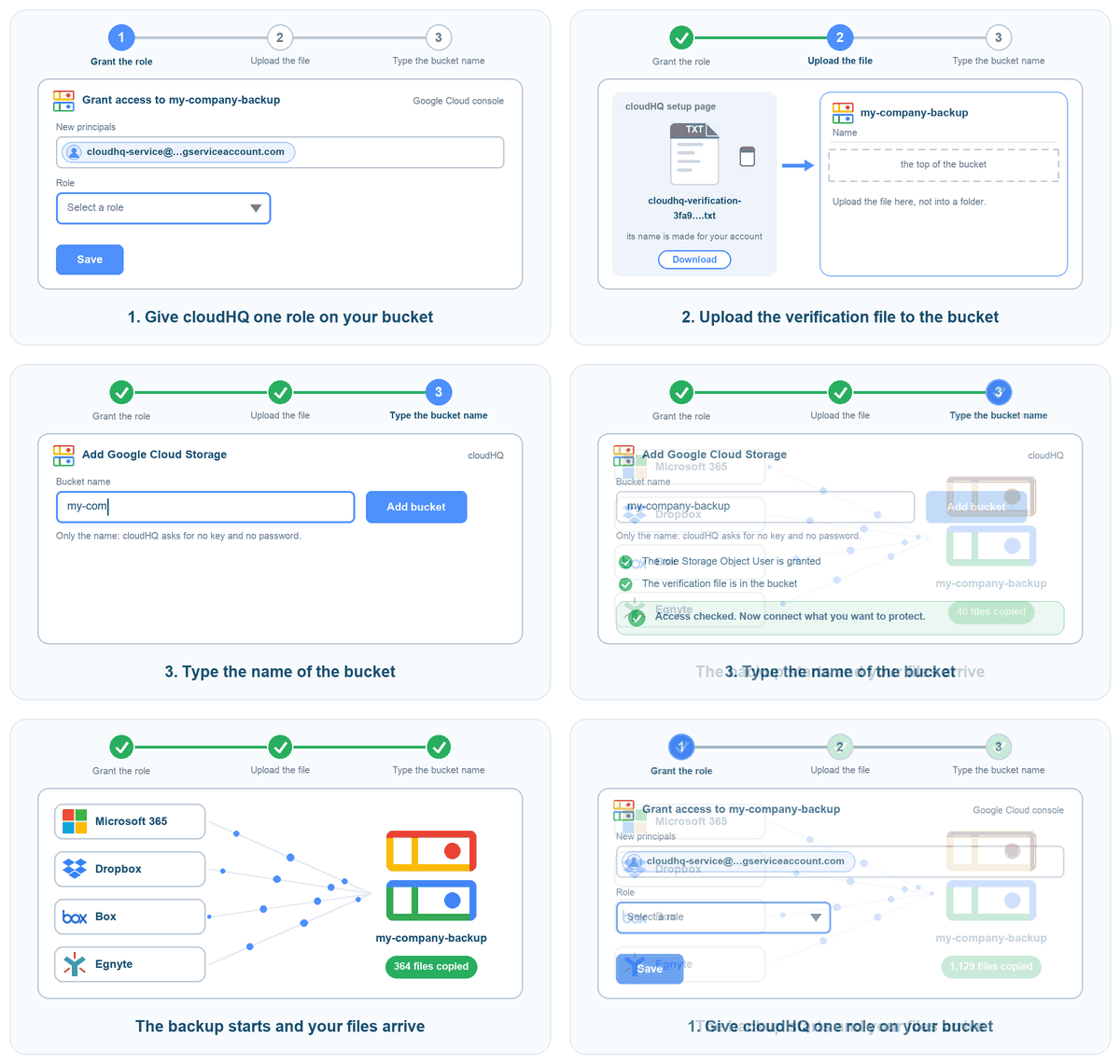
- Give cloudHQ access to your bucket. The setup page shows the address of the cloudHQ service account. Copy it. Then in the Google Cloud console, open your bucket, click Grant access, and assign the role Storage Object User to that address.
- Upload the verification file. cloudHQ gives you a small text file, and its name is made for your account. Upload the file to the top of the bucket. That way the bucket is marked as yours, and nobody else can add your bucket by typing its name.
- Type the name of the bucket. cloudHQ checks the access at once. After that you connect what you want to protect. The first run copies all of your selection, and from then on only the changes travel.
You don't install anything and there is no server to run. cloudHQ works between the two cloud services, so the backup keeps going even when every laptop in the office is switched off.
Two copies with one provider are still one basket
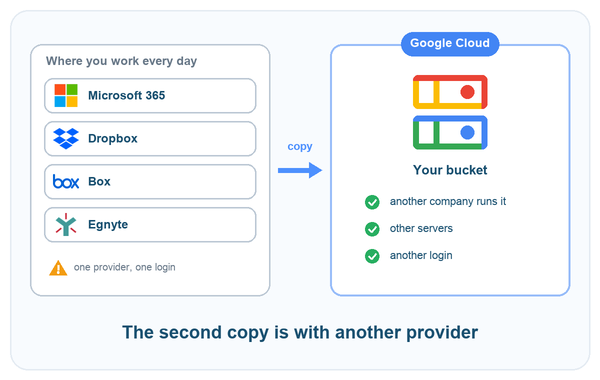
Microsoft, Dropbox, Box and Egnyte do keep their data centers up and running. What goes on inside your own account is something they can't guard you against. Delete a folder by mistake and it is gone once the recycle bin has been emptied. Close a user account and the files go with it. And if ransomware encrypts the files on a single laptop, the service copies those encrypted files to everyone else.
A backup stored in that same service carries every one of these risks. A copy in Google Cloud Storage does not:
- A different company runs it, on separate servers, behind a separate login.
- The copy stays there even after the original is gone or the account is locked.
- You can open it with Google Cloud tools whenever you like, and you don't have to ask the first provider for anything.
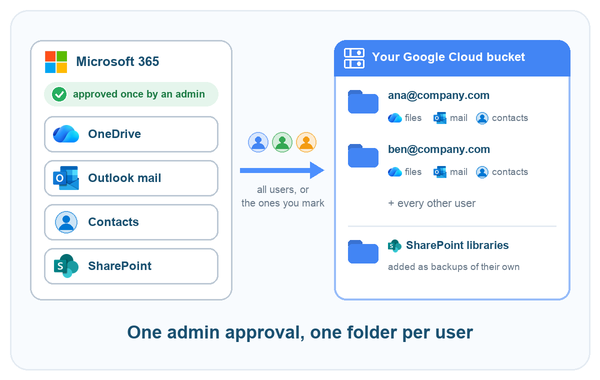
Microsoft 365: every user from one admin approval
One Microsoft 365 admin approves cloudHQ for the tenant, and that is enough. After that, cloudHQ displays the list of users and you pick all of them or only a few. Each user gets a folder of their own in the bucket. No one else has to install anything or give approval.
- OneDrive: each file and folder is copied over unchanged. A Word file in OneDrive ends up as the same Word file in the bucket.
- Outlook mail: each message is saved as PDF, EML, HTML or plain text, either in a single format or in more than one. Attachments stay inside the PDF, or you can keep them next to it as separate files.
- Contacts: stored for every user.
- SharePoint: you can add document libraries as backups of their own.
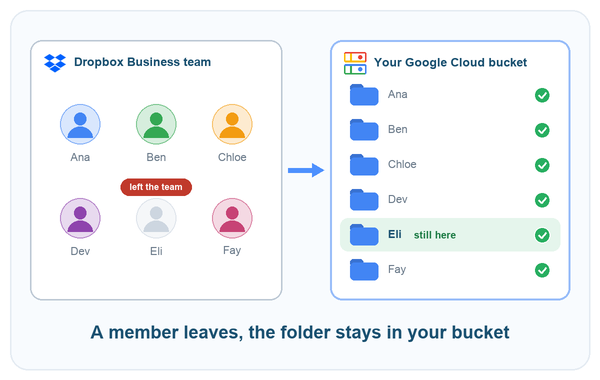
Dropbox Business: each member in a folder of their own
The team admin connects Dropbox one time. cloudHQ shows the list of members, you pick who to include, and each member's Dropbox gets copied into a separate folder in your bucket.
The risky moment for a team comes when someone leaves. Take a member off the team and that account's files may go with them. The folder in your bucket stays where it is.
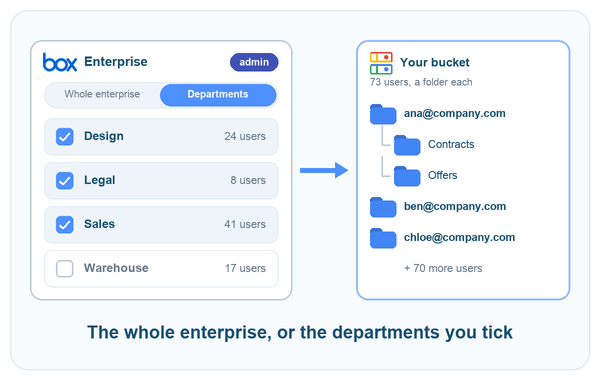
Box: the whole enterprise, or one department
Once you connect a Box admin account, cloudHQ can reach the content of every user in the enterprise. You decide whether that covers the whole company or only a part of it. Every user gets a folder in the bucket, and the folders and file names in that folder come from Box.
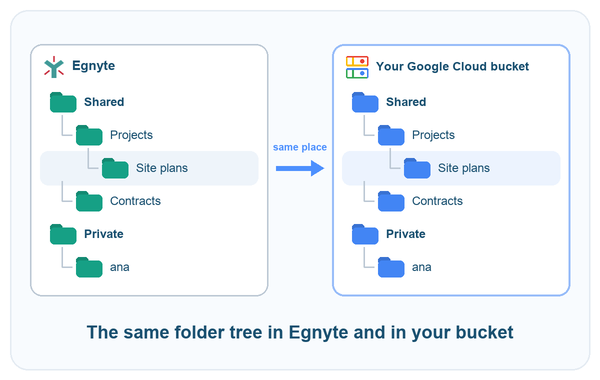
Egnyte: the same folder tree in your bucket
Log in to Egnyte with an admin account and pick the top-level folders you want to protect. You can also take all of Shared and Private. The bucket mirrors the Egnyte folder tree, so a file is where people expect to find it.
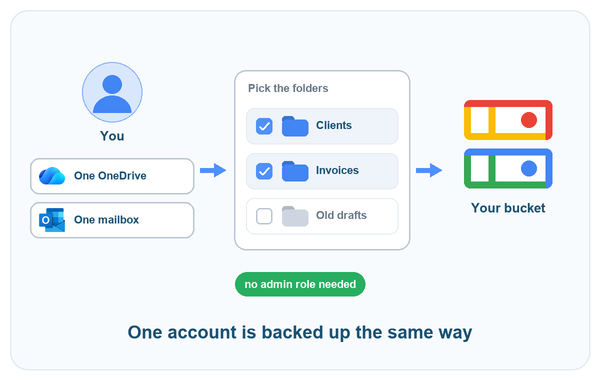
One OneDrive or one mailbox works too
No company setup and no admin rights are needed. Backing up one OneDrive, a single Outlook mailbox, or a personal Dropbox or Box account works the same way. Connect the account, select the folders you care about and choose the bucket.
An accountant who stores client files in OneDrive can use this. So can an IT admin who only wants the shared sales mailbox covered.
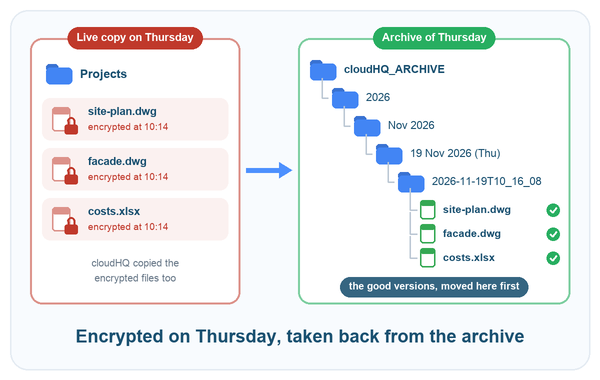
Example: the laptop that encrypted the project folders
A 40-person architecture office stores its projects in Dropbox Business. One Thursday, ransomware gets onto a single laptop and encrypts the project folders. Dropbox then does what it is built to do: it syncs those encrypted files out to every other member.
The office keeps a backup of all members in Google Cloud Storage, and the archive option is on. cloudHQ had copied the encrypted files too. But before it replaced a file in the bucket, it moved the good version into the cloudHQ_ARCHIVE folder, under the date and time of the change. The admin opens Thursday in the archive and takes the project folders back from there.
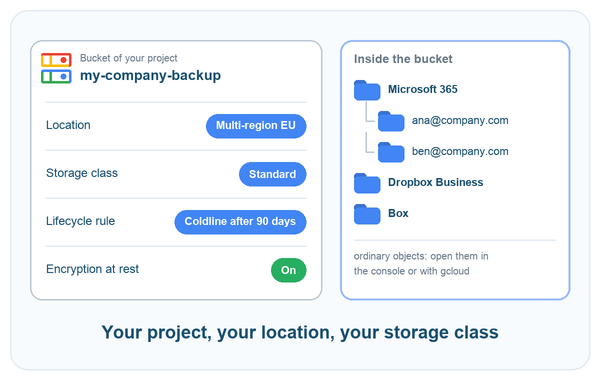
The backup lives in a bucket of your own project
Your backup is not stored on cloudHQ servers. It goes into the bucket you name, and that bucket is part of your own Google Cloud project.
- The location is up to you: pick a region, a dual-region or a multi-region.
- New objects take on the bucket's default storage class. If a lifecycle rule later shifts older objects to Nearline, Coldline or Archive, cloudHQ can still read them, so there's no need to restore anything first.
- Files arrive as regular objects and keep the folders and names they had before. You can open them in the Google Cloud console or with the gcloud command line, and cloudHQ isn't needed for that.
- Every object is encrypted at rest by Google, and the transfer goes over HTTPS.
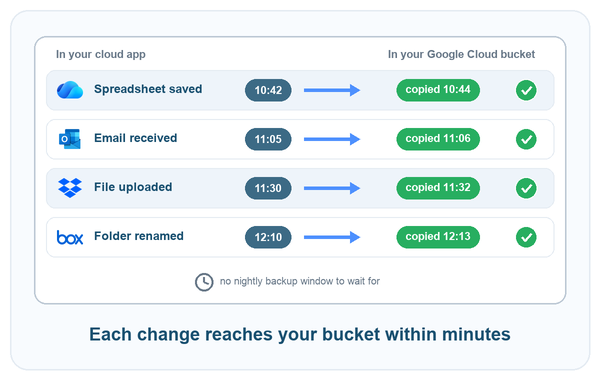
Changes are copied while you work
Microsoft 365, Dropbox and Box notify cloudHQ as soon as something changes. A spreadsheet gets saved or an email comes in, and that single item is copied to your bucket, usually within a few minutes. With Egnyte, cloudHQ checks for changes around every ten minutes.
That means the Google Cloud copy is never a day behind, and you don't have a nightly backup window that must end before the office opens. Should a service stop answering for a while, cloudHQ waits, retries and picks up from the point where it stopped.
Earlier versions and deleted files, filed by date
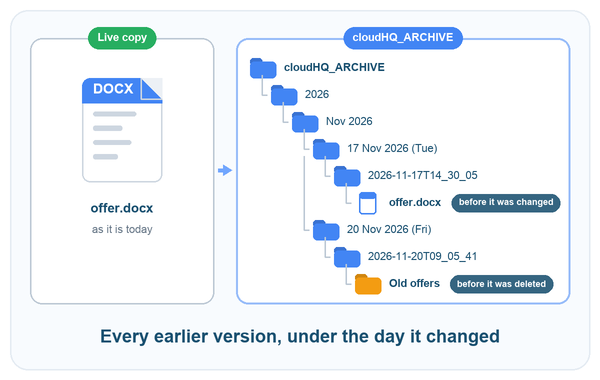
A backup copies every change, and that includes every mistake. To cover that, cloudHQ can set a file aside before it touches it. Turn on Archive files before they are changed or deleted by sync and the earlier version goes into a folder called cloudHQ_ARCHIVE inside the backup, sorted under the date and time of the change.
What you see in the live copy is your data as it stands today. The archive keeps what the data looked like before each change. A file that got overwritten on Tuesday, or a folder that was deleted on Friday, is in the archive of that day.
When Object Versioning or soft delete is enabled on your bucket, Google keeps a history of those same objects as well.
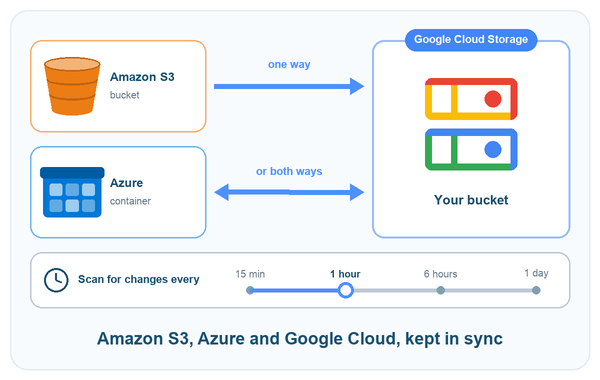
Amazon S3, Azure Blob Storage and your bucket, kept in sync
Some data never goes through an office app. Yours may already be in object storage, and cloudHQ can sync an Amazon S3 bucket or an Azure container with a Google Cloud Storage bucket:
- One way, when Google Cloud needs a copy of the other side, or the other side needs a copy of your bucket.
- Both ways, when two teams write on two clouds and each one needs the files from the other.
Object storage gives no notice when something changes. So cloudHQ scans the source on a schedule you choose, anywhere from every 15 minutes to once a day, and copies what is new or different. Nothing gets converted along the way. The object in your bucket is the object from the other cloud, in the same folder, with the same name.
For Azure, begin here: sync Azure Blob Storage with Google Cloud Storage.
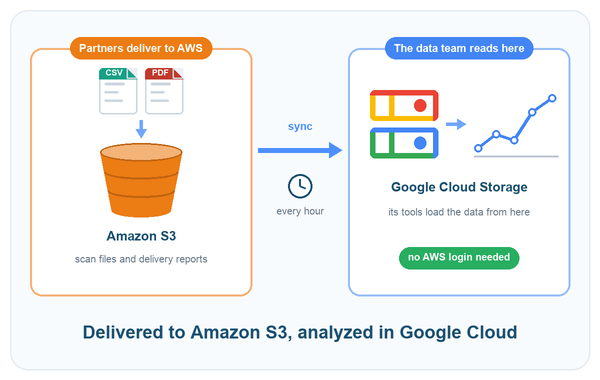
Example: files arrive in Amazon S3, the analysis runs in Google Cloud
A logistics company gets scan files and delivery reports from its partners in an Amazon S3 bucket. Its data team works in Google Cloud, and the team's tools load their data from Cloud Storage.
cloudHQ syncs the S3 bucket into a Google Cloud Storage bucket once an hour. The data team finds the new files in a place its tools already read from, and it needs no AWS login. No one has to write a copy job and take care of it. And if one of the two providers has trouble on a given day, the reports are with the other one too.
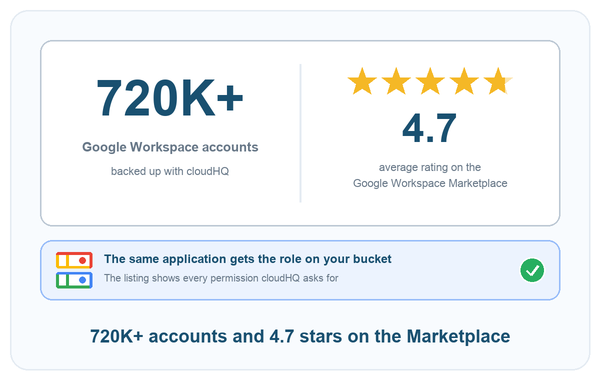
More than 720K Google Workspace accounts are backed up with cloudHQ
More than 720K Google Workspace accounts are backed up with cloudHQ. Its average rating on the Google Workspace Marketplace is 4.7 stars.
Every permission cloudHQ needs is spelled out on the listing, so an admin can go through them before anyone signs in. The service account you grant on your bucket comes from that same application.
Frequently Asked Questions
What does cloudHQ need from my Google Cloud project?
Three things. The cloudHQ service account needs the Storage Object User role on your bucket. There also needs to be a small verification file in the bucket. Last, cloudHQ needs the bucket name. No access key is needed, and neither is a key file or a password. You can see every click in this support note.
Can cloudHQ see my other buckets?
No. You grant the role on a single bucket, not on the whole project. cloudHQ has no way to list the buckets in your project, and anything outside the bucket you gave it stays out of reach for reading and writing.
Why do I have to upload a verification file?
Every customer gives access to the same cloudHQ service account. So if that file weren't there, anyone who knew your bucket's name could try to add it to another cloudHQ account. Your file's name is created for your cloudHQ account, which means you're the only one who can add your bucket. Keep the file in the bucket for as long as cloudHQ uses it.
How do I take the access away?
Open the bucket in the Google Cloud console. On the Permissions tab, remove the role that belongs to the cloudHQ service account. Once that role is gone, cloudHQ has no way to get to the bucket. You can also delete the verification file, and that stops the access too.
Can cloudHQ create the bucket for me?
No. The role doesn't allow it, and that is on purpose. You'll need to create the bucket in the Google Cloud console first, then come back and add it. In cloudHQ, each Google Cloud Storage account covers a single bucket. To use another bucket, add it as one more account.
Which storage class do the objects get?
New objects get your bucket's default storage class. If cloudHQ writes the same file again, that makes a new object, and it goes into the default class as well. Objects that a lifecycle rule moved to Nearline, Coldline or Archive can be read as they are, with nothing to restore first. Google bills the retrieval of those objects to your project.
Does it work with a retention policy or an object hold?
If a retention policy or a hold protects an object, nobody can replace or delete it, and cloudHQ can't either. cloudHQ reports that file as an error. If you want a backup that keeps up with your changes, pick a bucket that has no retention policy.
My organization does not let me grant the role. What now?
Some Google Cloud organizations let only the accounts of their own domain hold a role. That policy goes by the name Domain restricted sharing. When it's on, the Grant access window refuses the address of the cloudHQ service account. Get in touch with the administrator of your organization and ask them to allow that address for the project of the bucket.
Is the data encrypted?
Your data goes to Google Cloud over HTTPS. In the bucket, Google encrypts each object at rest, and your backup is part of that.
In which formats are emails saved?
Each email is saved as PDF, EML, HTML or plain text. Pick one format, or pick several at once. Attachments can be kept inside the PDF, or stored beside it as separate files.
How soon is a change in the bucket?
On Microsoft 365, Dropbox and Box, a change normally shows up in a few minutes. Those services notify cloudHQ of each change. For Egnyte, cloudHQ asks for the changes about every ten minutes. When Amazon S3, Azure Blob Storage or Google Cloud Storage is the source in a sync, cloudHQ checks it on the schedule you choose, which can run from every 15 minutes up to once a day.
What happens in the bucket when a file is deleted in the cloud app?
It comes down to two backup options. If Replicate deletion is turned off, the file stays in the bucket. If you turn it on, the file gets removed from the live copy. When Archive files before they are changed or deleted by sync is also on, the file goes to the cloudHQ_ARCHIVE folder first, and that means you can still bring it back.
How do I get a file back?
You can download it from the bucket. Use the Google Cloud console, or any other Google Cloud tool. If you need an earlier version or a file that was deleted, open the cloudHQ_ARCHIVE folder and look under the date when the change happened.
Do I have to be an admin?
Yes, but only if you want to back up every user in an organization. That does take a Microsoft 365 admin, a Dropbox Business team admin or a Box admin. For your own OneDrive or mailbox, no admin rights are needed. In Google Cloud the user needs to be able to grant a role on the bucket and upload a file to it. The Storage Admin role on that bucket gives them what they need for both.
Can I try it first?
Yes, you can. Run a trial first: add a bucket, do a backup and see how it goes before you commit to anything. You'll find the plans we offer right now on the pricing page.