

Backup Your Cloud to Your Amazon S3
60% of all data loss is caused by user error.cloudHQ will back up all your cloud apps to your Amazon S3 storage. In real-time.We reliably back up over 10M files a day.You can also sync Amazon S3 with Azure Blob Storage or Google Cloud Storage.

Real Time Backup
All changes are instantly backed up as files are altered which means that no data will ever be lost.
See all features »

Back up to Your Own Amazon S3
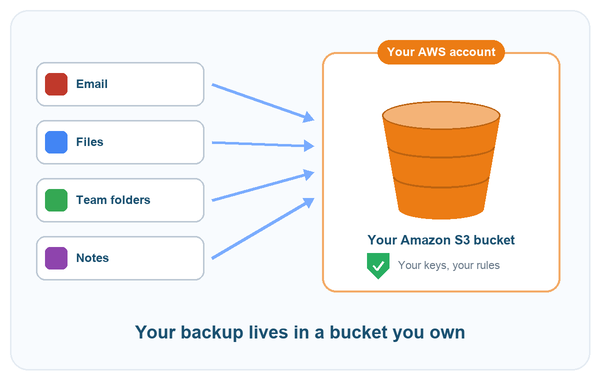
You'll have complete control of your data by using your own Amazon S3. Your data is continuously backed up to your Amazon S3.
See all benefits »

Protect the Data In Your Cloud
We proudly support: Salesforce, Google Workspace, Microsoft 365, Egnyte, Box, Oracle Sales Cloud, and Dropbox.
See all apps we support »
How cloudHQ backs up and syncs your cloud to Amazon S3
Why back up to Amazon S3
Google, Microsoft, Dropbox, Box and Egnyte all keep deleted items, but only for a limited time. Once that window closes, you can't get back a folder someone deleted by mistake or the mailbox of an employee who left. And if a ransomware attack overwrites or encrypts a file, the provider copies that change to every device.
A backup is only useful when it lives somewhere else. cloudHQ stores it in an S3 bucket in your own AWS account:
- The keys stay with you. The region is your choice, and so is who can read the bucket.
- Files land as ordinary objects in the same folder structure they had, so any S3 tool can read them, with cloudHQ or without it.
- The backup follows your own bucket policy and access rules.
- The copy sits with a different provider than your daily work, so a single outage or one compromised admin account can't take down both.
Virtual snapshots: restore to any point in time
A traditional backup takes a full copy every night. Each copy costs you money, and the only point you can return to is last night.
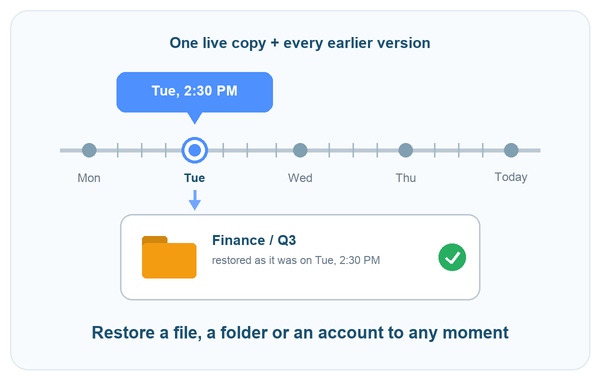
cloudHQ holds one current copy in your bucket. If a file changes or gets deleted in your cloud app, the older version is kept. It goes into the bucket along with the date and time the change happened.
A snapshot is that current copy seen together with the earlier versions, as they were at the moment you choose. No copying happens when you take a snapshot. That's why it's called virtual, and why you can have one for every minute of the day without keeping the same files over and over.
For a restore, pick a date and a time, then a file, a folder or a whole account. cloudHQ returns it to how it looked at that moment.
Real-time backup, not a nightly job
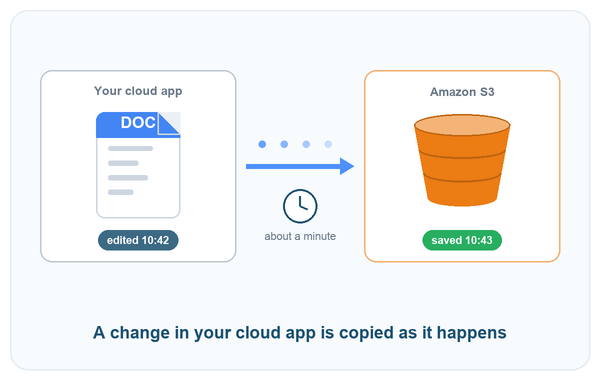
Google Workspace, Microsoft 365, Dropbox and Box can notify another service whenever something changes. Those notifications are what cloudHQ listens for. When someone saves a document or an email comes in, cloudHQ hears about it within moments and copies that single item to your bucket.
Everything you selected gets copied on the first run. From then on, only the changes move across, which means the backup usually sits a few minutes behind and you don't have to plan a backup window around it.
Should a provider be slow or unreachable for a while, cloudHQ retries later and picks up from the point where it stopped.
Back up all of Google Workspace
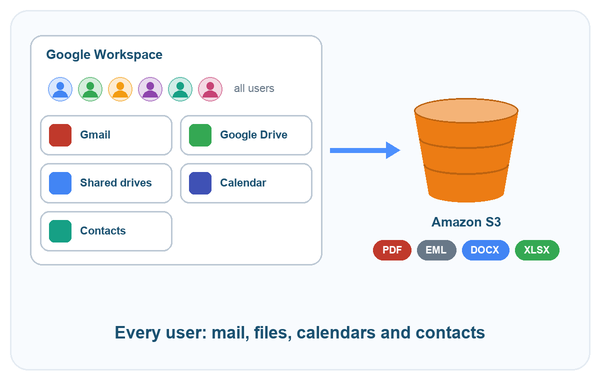
The admin of a Google Workspace domain signs in one time. cloudHQ pulls up the list of users in the domain, and then you decide: back up everyone, or only the people you tick. Each user gets a folder in the bucket. Nobody on the user side has to set up anything.
- Gmail: each email is saved as a PDF, EML, HTML file or plain text. Attachments stay separate files, or they sit inside the PDF if you choose that.
- Google Drive: all files and folders come along. Google Docs, Sheets and Slides are exported as .docx, .xlsx and .pptx files. You can add a PDF copy too. Shared drives are optional.
- Calendar and Contacts: each user's data is backed up as well.
Back up all of Microsoft 365
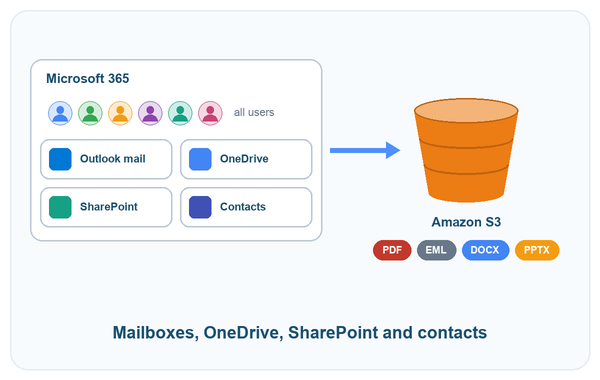
A Microsoft 365 admin gives cloudHQ permission for the tenant. You choose all users or only some of them, and cloudHQ starts a backup for each one.
- Outlook mail: covers every mailbox. Each email is saved as PDF, EML, HTML or plain text, and you can keep attachments as separate files if that suits you better.
- OneDrive: every user's files and folders get copied as they are.
- Contacts: each user gets their own backup.
- SharePoint: you can add document libraries as backups of their own.
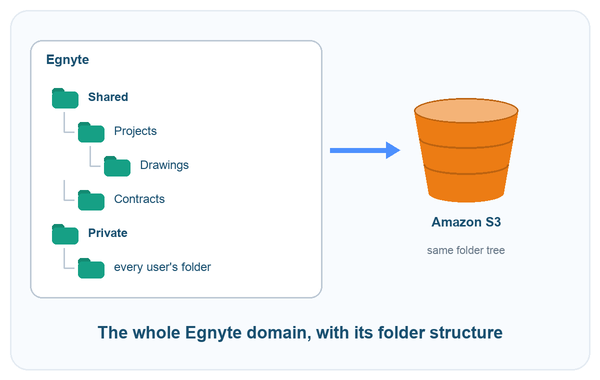
Back up your whole Egnyte domain
Log in to Egnyte with an admin account, connect it to cloudHQ, then pick what you want to protect. You can back up a few top folders, or the whole lot under Shared and Private. The folder tree in the bucket matches the one in Egnyte, so anyone looking for a file finds it in the spot they know.
Once the first copy is done, cloudHQ checks with Egnyte for the list of changes every few minutes. Only what is new or has changed gets brought over.
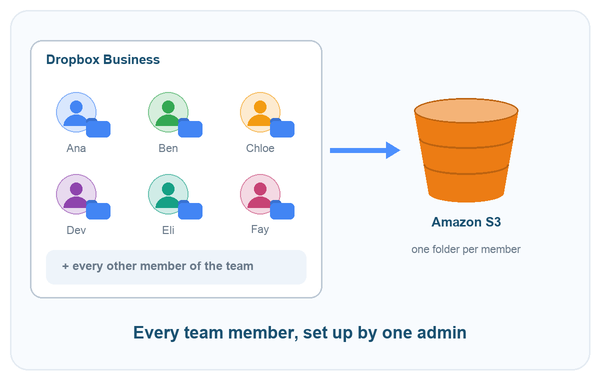
Back up every member of Dropbox Business
A team admin approves cloudHQ once. After that you get the list of team members and pick all of them or only some. Every member's Dropbox goes into its own folder in your bucket.
Dropbox reports changes as they happen, so when a member adds or edits a file, it lands in the bucket a short time later. If someone leaves the company and the Dropbox account gets closed, the files stay in your bucket.
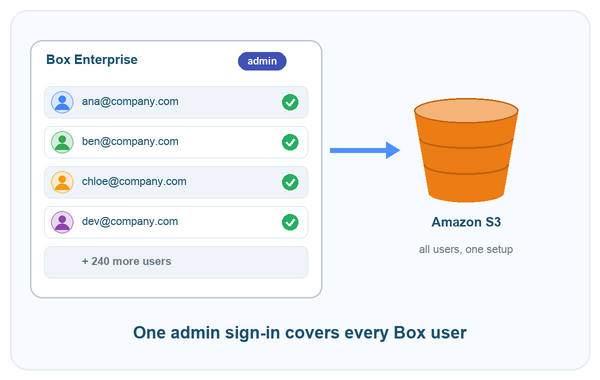
Back up Box Enterprise for all users
If you connect cloudHQ with a Box admin account, it gets to the files of everyone in the enterprise. Pick all users or just one department, and each one goes to its own folder in the bucket.
The folder tree stays the way it is, and file names don't change. When something changes in Box, the copy follows along as it happens.
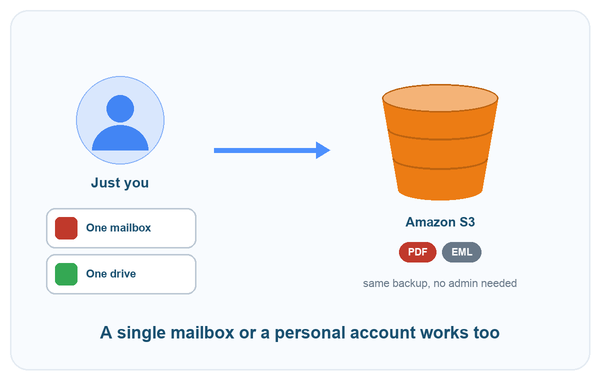
One mailbox or one personal account works too
Admin rights are not required here, and there is no need to back up an entire company. A single Gmail or Microsoft 365 mailbox gets the same backup, and so does one Google Drive or a personal Dropbox, OneDrive or Box account.
Connect the account, choose the folders or labels that matter to you, pick the bucket, and the backup starts. It suits a freelancer who keeps client files in Google Drive just as well as an admin who wants one shared mailbox protected.
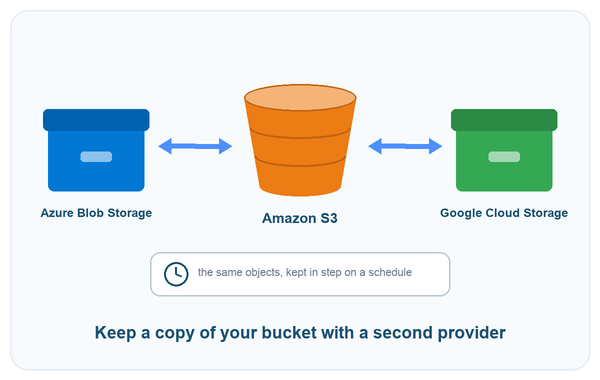
Sync Amazon S3 with Azure Blob Storage, Google Cloud Storage and more
Your data doesn't have to stop at Amazon S3. Any bucket can take part in a sync:
- Microsoft Azure Blob Storage paired with Amazon S3, so both providers hold the same objects.
- Google Cloud Storage paired with Amazon S3.
- A bucket linked to Google Drive, SharePoint, Dropbox, Box or Egnyte, so your team opens the files in a tool they know well.
You can run a sync in one direction, which leaves you with a copy, or in both directions. Object storage never announces its changes, so cloudHQ checks the bucket on a schedule you set, anywhere from every 15 minutes to once a day, and transfers whatever is new or different.
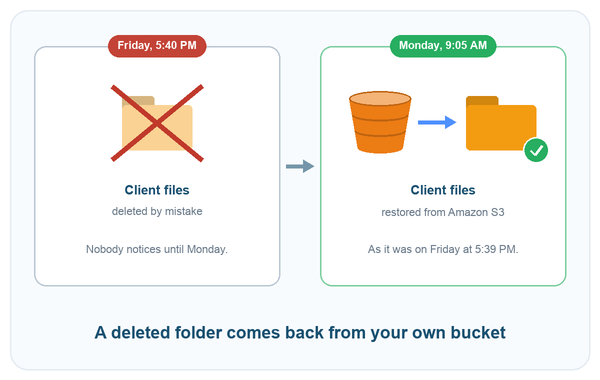
Example: a deleted project folder
A 40-person architecture office works on Google Workspace. Someone does some cleanup on a Friday afternoon and deletes the folder for a project that is still running. The team only spots it on Monday. No one can say by then what was inside the folder, or who had the newest drawings.
The admin opens the backup in Amazon S3, selects Friday at 5:39 PM, one minute before the cleanup, and restores the folder. The files, the subfolders and their names come back as they were. There was no need to ask Google for anything, and nothing relied on a trash that might be empty by now.
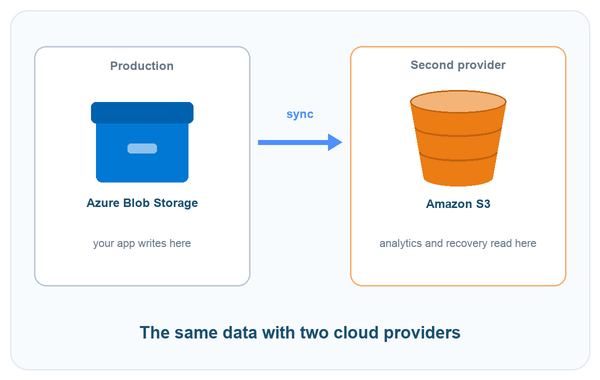
Example: one dataset with two cloud providers
A software company keeps its product on Microsoft Azure, and the files customers upload go to Azure Blob Storage. The data team works in AWS. One big customer wants a copy of the data with a second provider, and the contract says so.
cloudHQ syncs the Azure container into an S3 bucket once an hour. The data team can read the objects in AWS without going near production. If Azure has a bad day, the company still has its files in Amazon S3.
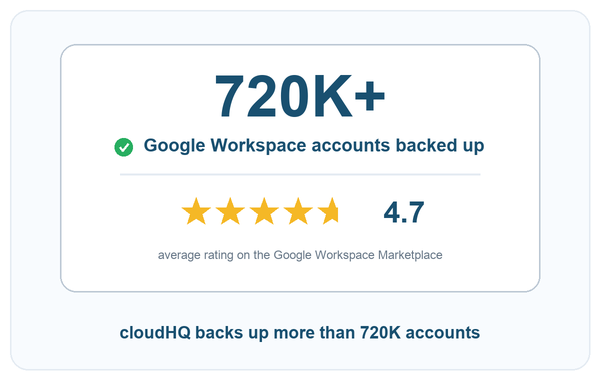
More than 720K Google Workspace accounts backed up
cloudHQ backs up more than 720K Google Workspace accounts. Its listing on the Google Workspace Marketplace has an average rating of 4.7 stars. Every permission cloudHQ requests appears on that same listing too, which means an admin can go through them before installing anything.
The listing is out in the open. Go and read the reviews yourself.
Frequently Asked Questions
Where are my files stored?
Your files live in an S3 bucket inside your own AWS account. You can select a bucket you already have, or cloudHQ can create one for you. From there you open the files with the AWS console or with any other S3 tool you like.
What does cloudHQ need from my AWS account?
It needs the Access Key ID and the Secret Access Key of an IAM user with access to Amazon S3. Our advice is to make a dedicated IAM user for cloudHQ. The steps for creating one are in this support note.
Which formats can emails be saved in?
You can pick PDF, EML, HTML or plain text, and it's fine to turn on more than one. Attachments get stored as separate files or stay inside the PDF, whichever you choose.
What happens to Google Docs, Sheets and Slides?
They get exported as Word, Excel and PowerPoint files (.docx, .xlsx, .pptx), because a Google document isn't a file that can be copied as it is. If you want, you can also add a PDF copy of each one. All the other items in Google Drive are copied unchanged.
How quickly does a change reach the bucket?
With Google Workspace, Microsoft 365, Dropbox and Box, it usually takes only a few minutes, since those services let cloudHQ know when something changes. Egnyte gets checked every few minutes. If the source is Amazon S3, Azure Blob Storage or Google Cloud Storage, cloudHQ scans it on the schedule you set, and that can run from every 15 minutes to once a day.
How do I restore something?
Choose a date and a time, and cloudHQ displays your data the way it looked at that point. You can restore a single file, a folder, or an entire account. Because the backup holds plain objects, you can also download a file directly from the bucket.
Is a file removed from the bucket when somebody deletes it in the cloud app?
It goes out of the current copy, but the deleted version still sits in the snapshots. To get it back, restore to a point before the file was deleted.
Do I have to be an admin?
An admin is needed only if you plan to back up every user in an organization. For that you need a Google Workspace admin, a Microsoft 365 admin, a Dropbox Business team admin or a Box admin. Your own mailbox or drive needs no admin rights at all.
Does it work with a bucket that requires encryption?
Yes. When the bucket policy requires server-side encryption with keys managed by Amazon S3 (SSE-S3), cloudHQ sends its uploads with that encryption.
Can I try it before I pay?
Yes. Start a trial and set up a backup before you decide. The plans are listed on the pricing page.