
Backup and Sync to Azure Blob Storage
No provider can bring back a deleted folder.
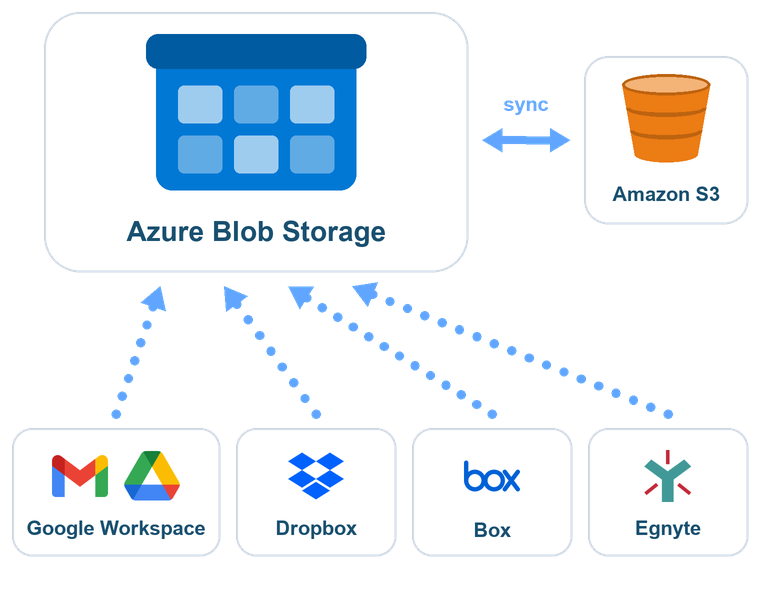
With cloudHQ, a second copy of your cloud lives in your own Azure storage account.It also syncs Amazon S3 with Azure Blob Storage.
Copied While You Work
Save a file or receive an email, and it shows up in your Azure container a few minutes later. You don't wait for a nightly job.
How changes travel »

Your Own Storage Account
Backups go to a container inside a storage account that belongs to you. You choose the region and the redundancy, and the keys stay in your hands.
What ends up in Azure »

A Different Provider on Purpose
On one side you have Google Workspace, Dropbox, Box, Egnyte and Amazon S3. On the other side sits Microsoft Azure. When a service goes down, it won't take both copies with it.
What you can back up »
Your cloud apps, backed up to a container in Azure
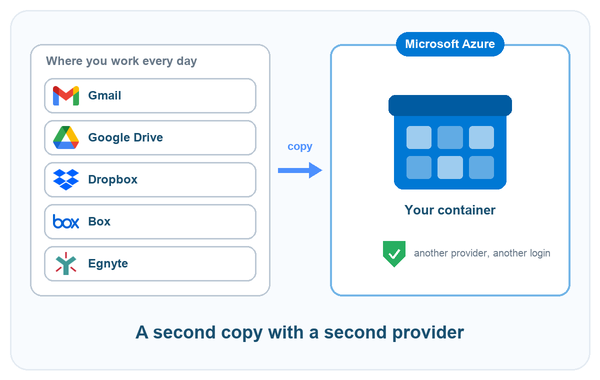
Why the second copy belongs with another provider
Google, Dropbox, Box and Egnyte take good care of their own data centers. They can't protect you from what happens inside your account, though. If you delete a folder by mistake, it's gone once the trash is emptied. When a user account is closed, its files go with it. And if ransomware encrypts the files on one laptop, the provider copies those encrypted files to every other device.
A copy kept inside the same service carries all of these risks. That isn't true of a copy in Azure Blob Storage:
- It lives with a different company, on different servers, behind a different login.
- It stays there even after the original is deleted or the account is locked.
- You can open it with Azure tools whenever you want, and you don't have to ask the first provider for anything.
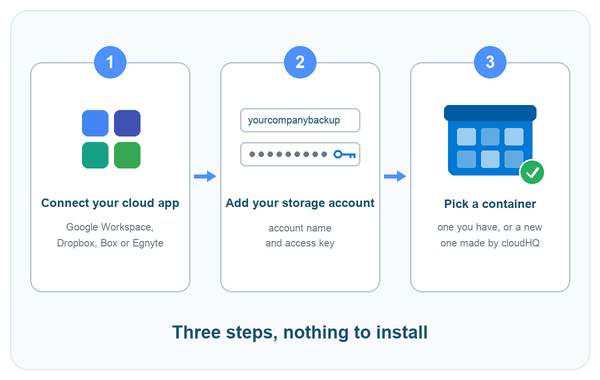
Set up in three steps
- Connect what you want to protect. Sign in to Google Workspace, Dropbox, Box or Egnyte with an admin account. If you only need your own files, sign in with your own account.
- Add your storage account. Copy the storage account name and an access key from the Azure portal and paste them into cloudHQ. You can paste the connection string instead if that's easier.
- Pick a container. Choose a container that already exists, or let cloudHQ create a new one for you. The first run copies everything you selected, and from then on only the changes travel.
You don't have to install anything, and there's no server to run. cloudHQ works between the two cloud services, so the backup keeps going even when every laptop in the office is switched off.
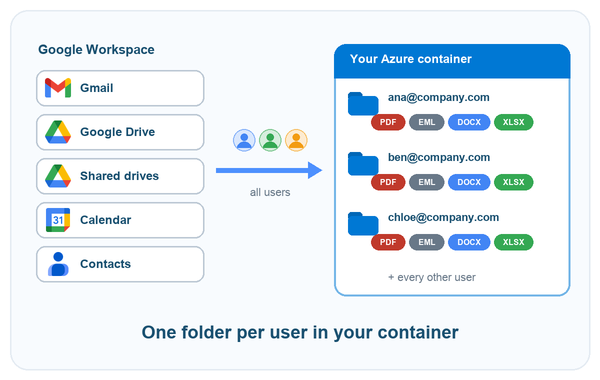
Google Workspace: all users from one admin sign-in
One sign-in as a Google Workspace admin is enough for cloudHQ to read the user list in the domain. You mark everyone, or just a few departments. Every user gets a folder of their own in the container, and no one on their side has to install or approve anything.
- Gmail: every message is saved as PDF, EML, HTML or plain text, and more than one format can be picked. Attachments are stored inside the PDF, or beside it as separate files.
- Google Drive: every file and folder, shared drives too if you want them. Google Docs, Sheets and Slides turn into .docx, .xlsx and .pptx files, since they can't be copied as they are.
- Calendar and Contacts: these are saved for each user as well.
Dropbox Business: every member of the team
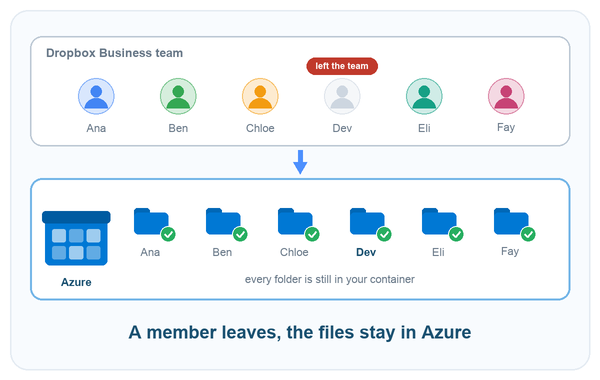
The team admin connects Dropbox one time. cloudHQ brings up the list of members, you pick the ones to include, and each member's Dropbox lands in a folder of its own in Azure.
What happens when people leave is the usual gap. If an account is taken off the team, the files in it can go too. The copy in your container stays where it is.
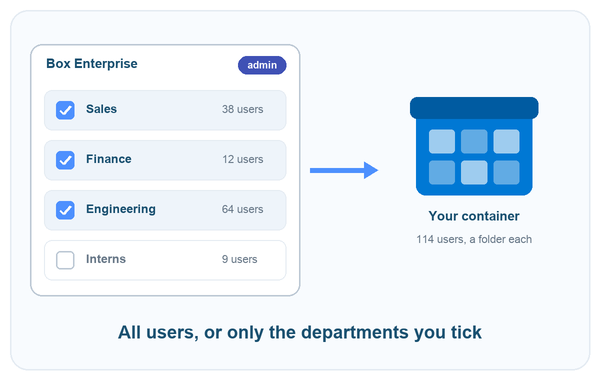
Box: all users, or only one department
Once you connect a Box admin account, cloudHQ can get to the content that belongs to every user in the enterprise. You decide if that means the whole company or just part of it. Folder structure and file names show up in Azure the way they are in Box, with one folder for each user.
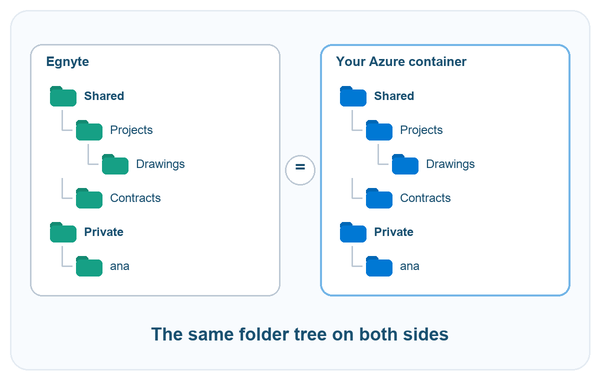
Egnyte: Shared and Private, with the same folder tree
Log in to Egnyte with an admin account, then pick the top folders you want to protect. You can also protect all of Shared and Private. Inside the container, the folder tree matches the one in Egnyte, so files sit right where people expect to find them.
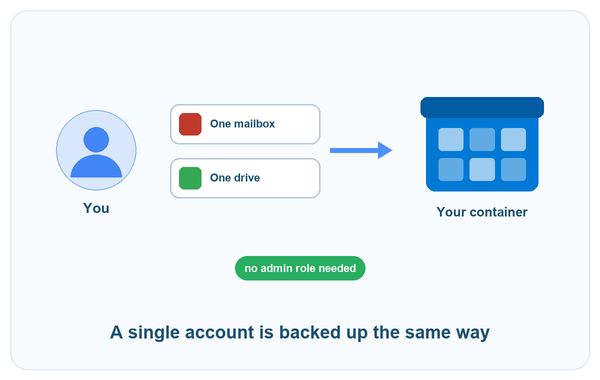
One mailbox or one drive is enough
A company or an admin role isn't required. The backup works the same for a single Gmail mailbox, one Google Drive, or a personal Dropbox or Box account. Connect it, pick the labels or folders that matter, and choose where the backup goes.
That setup works for a consultant who keeps client files in Google Drive. It also works for an IT admin who wants only the shared sales mailbox protected.
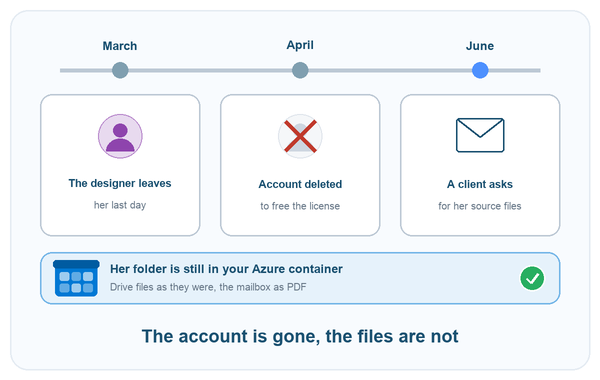
Example: the designer who left in March
A marketing agency of 25 people runs on Google Workspace. A designer leaves in March. A few weeks later the license is freed up by deleting her account. Then in June a client asks for the source files of a campaign she made. By then no one had copied those files out of her Drive.
Every user at the agency is backed up to Azure Blob Storage. Her folder is still there in the container, and it holds her Drive files plus her mailbox saved as PDF. The account manager gets the campaign folder from the Azure portal and sends it over that same afternoon.
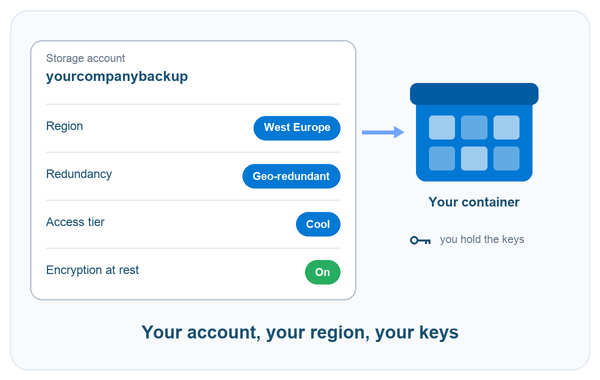
The backup lives in your own storage account
Your backup is not stored on cloudHQ servers. cloudHQ writes it into a container in the Azure storage account you connect, and that account belongs to you.
- The region and the redundancy are your choice, from locally redundant up to geo-redundant storage.
- New blobs use the access tier the account defaults to. If a blob gets updated later, it stays in the tier it already has.
- Files come in as normal block blobs, with the same folders and names they had before. You can read them in the Azure portal, Storage Explorer or AzCopy, with no need for cloudHQ.
- Azure encrypts each blob at rest, and the transfer goes over HTTPS.
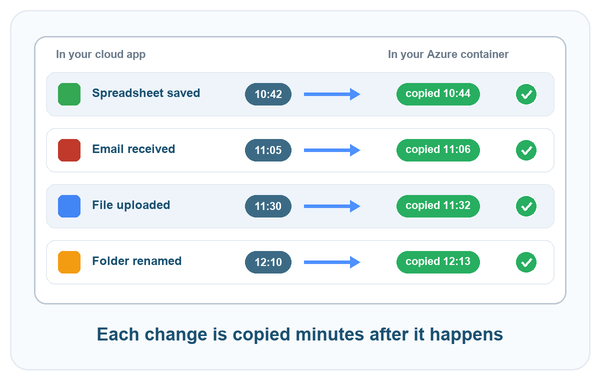
Changes are copied while you work
Google Workspace, Dropbox and Box report a change the moment it happens, and cloudHQ picks it up right away. When someone saves a spreadsheet, or an email arrives, that single item gets copied to your container, usually within a few minutes. Egnyte is different: it is checked roughly every ten minutes.
That means the copy in Azure is never a day behind, and you don't need a backup window at night that has to finish before the office opens. If a service stops answering for a while, cloudHQ waits, tries again, and continues from where it stopped.
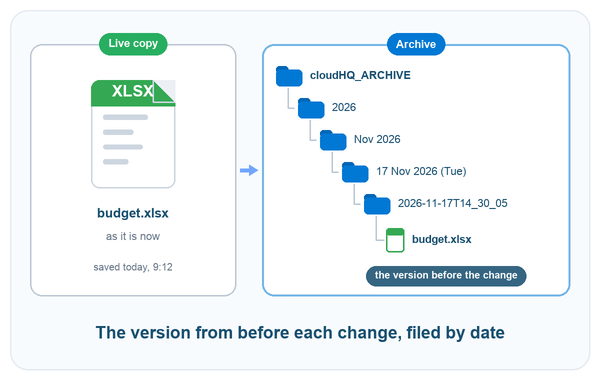
Changed and deleted files are kept, filed by date
When a backup copies every change, it copies every mistake too. That's why cloudHQ can set a file aside before it works on it. Turn on Archive files before they are changed or deleted by sync and the older version goes into a folder called cloudHQ_ARCHIVE inside the backup. It sits there under the date and time of the change.
The live copy shows your data the way it is now. The archive keeps the way it looked before each change. Say a file gets overwritten with junk on Tuesday, or a folder gets deleted on Friday. Open the archive for that day and take the earlier version back.
If blob versioning or soft delete is turned on in your storage account, Azure keeps its own history of those same blobs as well.
Amazon S3 and Azure Blob Storage, kept in sync
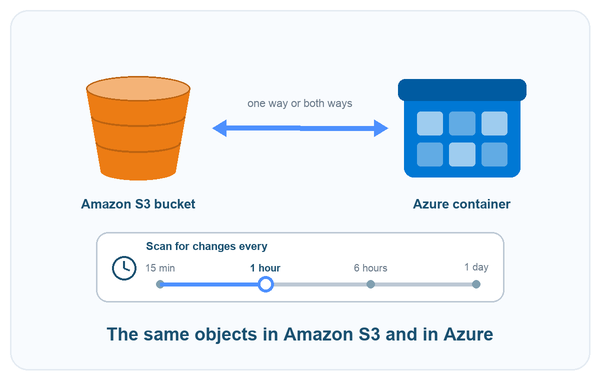
Some data never passes through an office app. When yours already sits in object storage, cloudHQ can sync an S3 bucket with an Azure container:
- One way, if Azure needs to hold a copy of the bucket, or the bucket needs a copy of the container.
- Both ways, if two teams write on different clouds and each side needs the other side's files.
Amazon S3 and Azure don't announce their changes, so cloudHQ scans the source on a schedule you choose, anywhere from every 15 minutes to once a day, and copies over whatever is new or different. Nothing gets converted along the way. What you see in Azure is the same object from S3, sitting in the same folder and carrying the same name.
Example: production in AWS, reporting in Azure
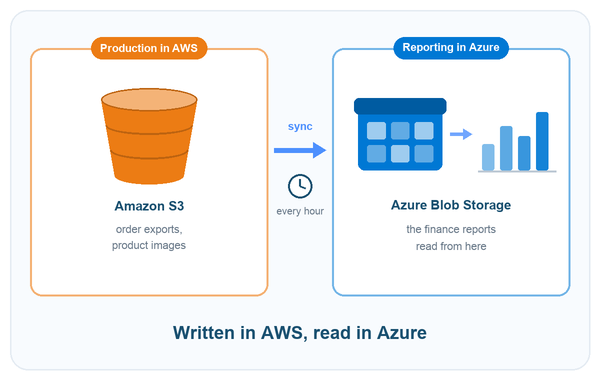
The production side of an online shop lives on AWS. Its order exports and product images go into an S3 bucket. The finance team works with Microsoft tools, and its reports pull data from Azure Blob Storage.
cloudHQ syncs the bucket into a container every hour. Finance gets the new files without an AWS login. The developers no longer need to build and maintain a copy job, and those exports sit with a second provider on the day one of them runs into trouble.
Backing up more than 720K Google Workspace accounts
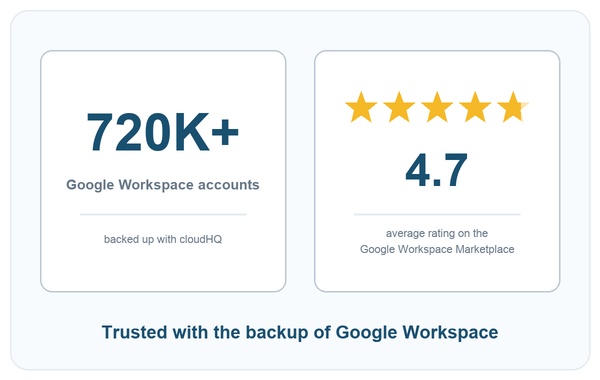
More than 720K Google Workspace accounts get backed up with cloudHQ. An admin turns the backup on for the domain one time, and that covers each user in it.
On the Google Workspace Marketplace, cloudHQ holds an average rating of 4.7 stars. Every permission cloudHQ requests is listed there, so admins can go through them before anyone signs in.
Frequently Asked Questions
What does cloudHQ need from my Azure account?
cloudHQ asks for two things: the name of the storage account, plus one of its two access keys. You'll find both in the Azure portal. Open the storage account, then click Access keys under Security + networking. If you like, you can paste the connection string from that same page instead. A shared access signature (SAS) won't do the job. This support note walks you through the whole thing, step by step.
Where do the files end up?
They go into the container you pick. cloudHQ can also make a new container for you during the setup. Back up several users at once and each of them gets their own folder in that container. The files are stored as regular block blobs, so you can open them in the Azure portal and download them from there.
Which access tier do the blobs get?
Every new blob takes on the default access tier set in your storage account. If cloudHQ changes a blob afterwards, the blob stays in the tier where it already sits. Archive tier blobs work differently: Azure won't let anyone read or replace them, so cloudHQ skips them until you rehydrate them.
Is the data encrypted?
HTTPS protects the data while it's on its way to Azure. Once it reaches the storage account, Azure encrypts each blob at rest, and your backup is included in that.
In which formats are emails saved?
You can save them as PDF, EML, HTML or plain text. Pick one format or go with several. Attachments stay inside the PDF, or they land next to it as separate files.
What happens to Google Docs, Sheets and Slides?
A Google document isn't a regular file, so it can't be copied over as it is. cloudHQ exports it instead: Docs come out as .docx, Sheets as .xlsx, Slides as .pptx. You can add a PDF copy of each one too. Every other file in Google Drive gets copied without any change.
How soon is a change in the container?
For Google Workspace, Dropbox and Box, changes usually show up within a few minutes, since those services notify cloudHQ about every change. Egnyte gets checked roughly every ten minutes. For syncing, when Amazon S3 or Azure Blob Storage is the source, cloudHQ scans it on whatever schedule you set, from every 15 minutes up to once a day.
What happens in Azure when a file is deleted in the cloud app?
Two of the backup options decide this. If Replicate deletion is off, the file stays in the container. If it is on, the file is removed from the live copy. Should Archive files before they are changed or deleted by sync also be on, the file goes into the cloudHQ_ARCHIVE folder first, which means you can still get it back.
How do I get a file back?
Download the file from the container using the Azure portal or another Azure tool of your choice. If you need an older version, or the file has been deleted, check the cloudHQ_ARCHIVE folder and look under the date the change happened.
What happens when I rotate the access key?
Every storage account comes with two keys. Regenerate the one cloudHQ is using and the backup stops for a while, and cloudHQ emails you about it. Once you enter the new key under Cloud Accounts, the backup starts running again on its own. Nothing changes for cloudHQ if you regenerate the other key.
Do I have to be an admin?
Just in one case: when you want to back up every user of an organization. For that you need an admin, either a Google Workspace admin, a Dropbox Business team admin or a Box admin. No admin rights are needed for your own mailbox or drive. With Azure, you need access to the keys of the storage account.
Can I try it first?
Yes. You can start a trial, connect a storage account and run a backup before you make a decision. The plans available right now are listed on the pricing page.